![explori_logo (1).png]](https://kb.explori.com/hs-fs/hubfs/Explori%20logos/explori_logo%20(1).png?height=40&name=explori_logo%20(1).png)
Explori’s AI-powered summaries turns raw data into clear, actionable insight in just a few clicks. As feedback begins to come in, the tool analyses your results in real time, compares them with your historical performance and industry benchmarks, and delivers an instant narrative of how your events are performing.
As more responses come into your live survey, the AI summary will update to show up-to-date feedback based on data captured so far.
This is a great tool if you need quick insights into the data you have collected while the survey is live, rather than waiting for the survey to close before beginning analysis.
For benchmarking surveys, each summary will include:
-
KPI Summary
This will show you the main benchmarking questions within your survey as the main points of the reporting summary -
Top Findings
Dynamically generated content based on the specific questions used in this survey - this section will differ between your surveys dependent on the questions used. - Recommendations
Where there are questions with results scoring lower than relevant benchmarks, or with particularly low scoring results, this section will highlight those questions and will show appropriate comparisons
How to use the AI Summary
To use the AI Summary, first head to the Report page for the survey that you wish to view the summary for.
The AI Summary will appear in two places within your Report - each closed question will have a summary explaining the results, comparing your survey's results to any historic comparisons (where available) as well as relevant benchmarks. You will also see the AI Assistant icon in the top right corner of the report page.
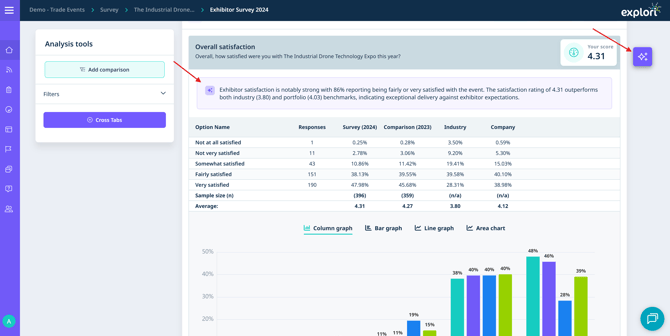
Clicking on the AI Assistant icon will expand out the summary which is dynamically generated based on the current results captured within your survey.
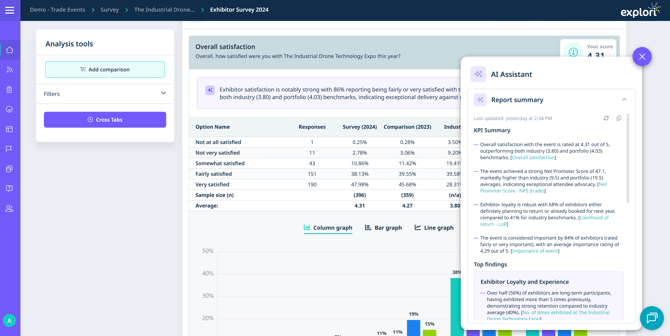
Within the Assistant, you will see that each summary point has at least one question that is used as the source for the finding, named based on the Question Reference title. Clicking on the hyperlinked question title beside each point will scroll the page to show you the data it is referring to.
 The copy button will add the formatted summary to your clipboard, removing the question hyperlinks but leaving the question title for each finding.
The summary will be initially generated when the Report page is first accessed, and there are at least 10 completed responses. If there have been (at least) 10 new completed responses since the last time that the summary has been regenerated, then this will be done again automatically upon page load when the Report page is next accessed.
If you are a Master User, you can also click on the refresh button  within the AI assistant to manually regenerate the report once per day.
Note: If the survey does not have at least 10 completed responses, the AI summary will not populate due to a lack of data in order to generate a summary.
Once the report has been closed, the summary will automatically regenerate if any new responses have come in since the last regeneration to ensure that your final AI summary is up to date.
Where can I find the AI Summary?
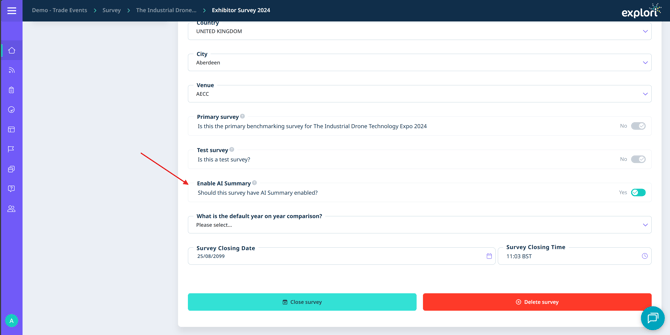
The AI Summary tool must be activated for your organisation to appear, and by default will be turned on for survey reports by default. You can toggle this on/off within the Settings tab for a particular survey.
Note: The AI assistant is only available for Explori Pro licence surveys and cannot be used for Explori Lite surveys.
Caution: Whilst our AI features have been rigorously tested, AI-generated insights may contain inaccuracies. Always review underlying data.