![explori_logo (1).png]](https://kb.explori.com/hs-fs/hubfs/Explori%20logos/explori_logo%20(1).png?height=40&name=explori_logo%20(1).png)
AI-Powered Survey summaries
Explori’s AI-powered survey summaries turns raw survey results and audience feedback into clear, actionable insight. As feedback begins to come in, the tool analyses your results in real time, compares them with your historical performance, company and industry benchmarks, and delivers a structured narrative of how your events are performing.
No need to wait for your survey to close before extracting insights from your audience feedback. As more responses come into your live survey, the AI summary will update to show up-to-date insight based on data captured so far.
Availability
Note: The AI assistant is NOT available to surveys with an Explori Lite license
Explori's AI-powered survey summaries are available to:
-
All survey types (Benchmarking, General)
-
All user types (Master, Division, Portfolio, Product, Report and Director)
- Report and Director users are unable to manually trigger a refresh
AI-Powered survey summaries are enabled by default in all surveys. However AI can be disabled in the Settings page of your survey
Tip: For surveys created before 2 March 2026, AI may need to be manually enabled
Note: AI must be enabled for your organisation to appear, please contact support@explori.com if you are unsure if your account has this enabled
How and when Explori summarises your survey results?
Model and Data
Explori passes survey metadata and annonymised / aggregated survey results only* to the AI summarisation assistant along with a custom engineered prompt and guardrails
*Note: Open-text responses are excluded from summarisation at this time
The prompt and guardrails prescribe the following rules from our chosen AI model*:
-
Outputs are grounded strictly in survey data and must not use information from additional sources
-
AI summaries are generated using a low-temperature configuration to prioritise factual accuracy and minimise creative inference.
Current model: Claude Sonnet 4.5
Regeneration
AI summaries are cached for consistency and performance and regenerate under the following conditions:
Survey live and view Report page - While a survey is live and collecting response, navigating to the Report page will automatically regenerate a summary if meaningful data changes have occured (each 10 responses)
Survey closure - When your survey closes your summary will automatically regenerate, ensuring your final AI summary is up to date (Only regenerates if new responses have been received to prevent unnecessary change).
Manual trigger - While the survey is live or after survey closure the AI assistant can be manually triggered to regenerate summaries
Rate limits: Daily rate limits apply per survey to ensure fair usage
Viewing summaries
AI summaries are available within the Reports page of your survey. Here you will see summaries in two formats
Executive and per-question summaries generate simultaneously so remain in sync relative to the number of survey responses when previously generated.
Report summary
The Report summary is an executive style narrative of your overall survey results.
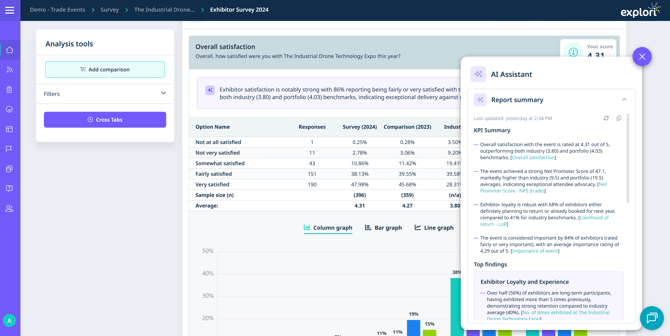
The Report summary can be found in the AI assistant:
- Navigate to the Report page for you survey
- Select the AI Assistant icon located on the right-hand side of the page
Report summaries are comprised of three core sections, each containing bulleted summarisation points:
-
KPI Summary / Overall Summary - This will summarise the primary questions within your survey as the main points of the Report summary.
-
Top Findings - Dynamically generated content based on the specific questions used in this survey - this section will differ between your surveys dependent on the questions used.
-
Recommendations - This section focusses on highlighting aspects of the feedback that require special attention or additional investigation. Where a questions scores notably lower than the benchmarks these may be highlighted for potential improvement in future.
Referenced questions and navigation links
Each summary point is grounded in the survey results and linked to at least one specific question. Every question used to support a finding is cited at the end of the summary point by its question title and is hyperlinked.
-
Select the referenced question title to navigate directly to the respective question
Copying the summary
For easy sharing, the Report summary can be copied to your clipboard.
- Select the Copy icon at the top of the Report summary
Per-question commentary
At the top of each question section, a respective short summary gives you specific explaining the results, comparing your survey's results to any historic comparisons (where available) as well as relevant benchmarks.
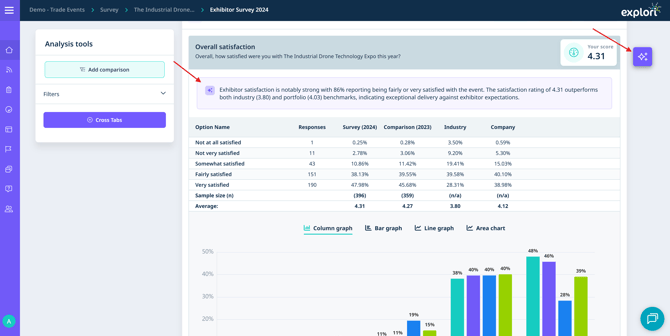
Note: Per-question commentary does NOT support the following question types:
- Text box
- Text area
- Text box list
- Text block
- URL variable
- Date picker
Managing AI assistant
You can view when the survey was last generated and access manual regeneration controls via the AI assistant:
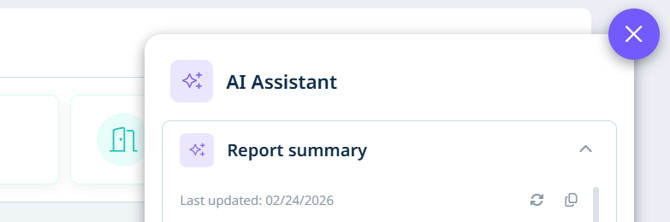
To view when the summary was last generated:
- Navigate to the Report page for you survey
- Select the AI Assistant icon located on the right-hand side of the page
- View date (and time) when the summary will be shown
To manually trigger summary regeneration*:
*Note: Report and Director users are unable to manually trigger a refresh
- Navigate to the Report page for you survey
- Select the AI Assistant icon located on the right-hand side of the page
- Select the refresh button to manually trigger regeneration of the Executive and per-question summaries
Enable / Disable AI summarisation for surveys
Explori offers full control over which surveys are analysed by AI.
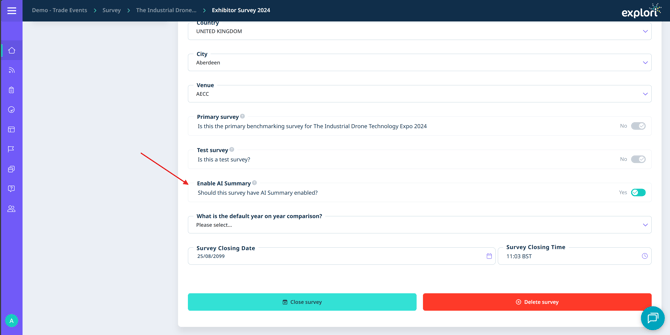
You can toggle AI-powered summarisation for any given survey via its respective settings page.
- Navigate to the Settings page for you survey
- Select the toggle to enable or disable AI summarisation