![explori_logo (1).png]](https://kb.explori.com/hs-fs/hubfs/Explori%20logos/explori_logo%20(1).png?height=40&name=explori_logo%20(1).png)
The dashboard widget creator enables you to personalise your dashboard so you can visualise survey results in the way that best supports your objectives. You can configure each widget to highlight the metrics that matter most to you, whether that is overall event performance, specific audiences or benchmarking comparisons. This flexibility allows you to build dashboards that align with different stakeholders’ priorities.
With the updated widget creator, you can see a live preview of your widget as you build, ensuring you know exactly how your insights will appear on your dashboard. As you adjust the widget, the preview updates in real time, allowing you to visualise your widget before confirming your choices. This reduces the need for trial and error, saving you time.
Note: The widget creator is available to use for Master, Division, Portfolio and Product users. For Report or Director users, please speak to your manager or Explori team lead.
How to use the Widget Creator
For how to access the dashboards, please visit Explori Dashboards.
-
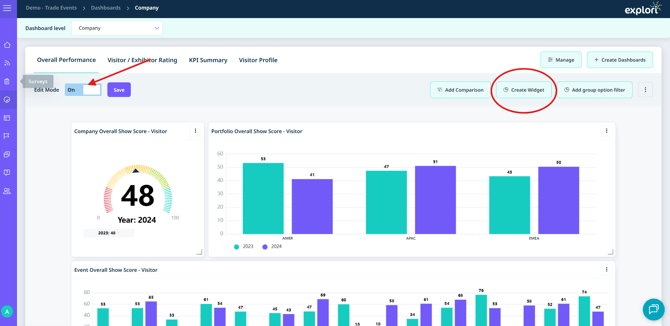
At the top of the dashboard, toggle ‘Edit mode’ on.
Additional options will appear at the top of the dashboard.
-
Select ‘Create widget’.
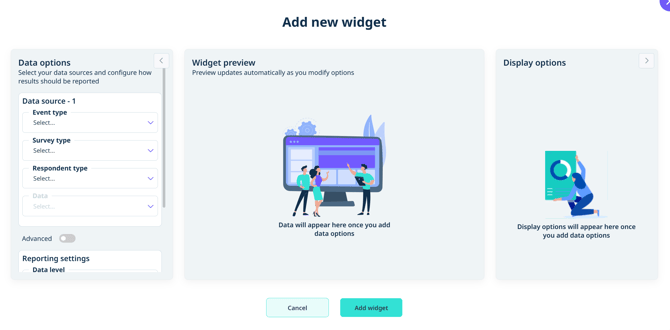
The three-panel layout will open with:
- Data options - select your data and configure reporting settings
- Widget preview - updates automatically as you configure your widget
- Display options - control your chart type, labels, sorting and colours
Configuring your data
Note: The widget options will vary depending on the level of dashboard you are working on. Filters that can be inferred from the dashboard context, or where only one option exists, are hidden automatically so you only see the choices that are relevant to your configuration.
| Dashboard Level | Available data level options |
| Company | Company, Division, Portfolio, Product |
| Portfolio | Portfolio, Product |
| Product | Product |
Data options
Data source
From the dropdowns, select the:
- Event type - select the type of event for your data e.g. trade or consumer shows
- Survey type - select the survey the data should be drawn from
- Respondent type - select the audience group e.g. visitors, exhibitor
- Data – select the question within your surveys that the dashboard will be pulling the information from
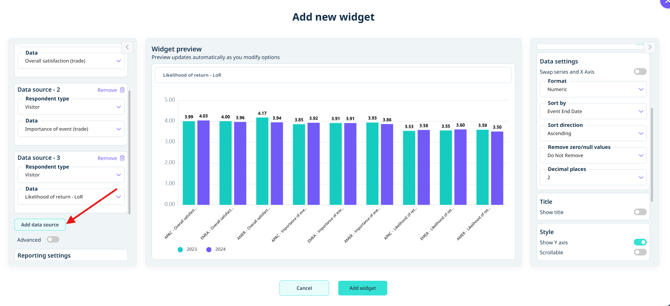
You will have the option to add additional data sources. This allows you to display data from different sources on the same widget. For example, you may want to display the core KPIs together.
Warning: When using more than one data source on a single widget, all data sources must use numeric (average) reporting values. Questions without numeric values cannot be combined in this configuration.
Reporting settings
- Data level – if you are working on a higher level dashboard, you can select the data level for your widget e.g. you may be working a company level dashboard with a widget that focuses on portfolio level data
- Time period – set the comparison period for your data e.g. 36 months (this is the time period for the standard Explori benchmarks) or long term benchmarks which are 84 months
- Display value – select how the data is calculated and displayed e.g. the average score or the score as a percentage
Tip: Display value is determined by the question type. Average is only available when the selected data source has numeric reporting values. If you do not see the option you expect, check that the correct data and respondent type are selected.
The widget preview will update automatically as you configure your selections. Review the preview to ensure your visualisation is what you are looking for as you make your adjustments.
Once you have added all of the additional data you need, you can use the advanced settings to customise your data even further.
- Option filters – allow you to show / hide specific answer options e.g. you may only want a widget that shows NPS Promoters so you show the scores or 9 and 10 and hide everything else.
- Filter data – select the different Divisions, Portfolios, Products and events you would like to display
- Group data – groups your data specific metrics such as country or region – you can then filter this further to select the data you would like to display
Display options
This is where you can customise the visual aspects of your widget.
Tip: The options will vary depending on the question type and chart type you choose e.g. Word Clouds are only available for qualitative questions and have less configuration than other types of charts.
- Chart type – select the visualisation type you would like to use for your widget
- Legend – toggle this to show or hide your chart colour codes
- Labels – toggle data labels on or off, set label position, and rotate x-axis labels if needed
- Data settings – choose how you would like to sort your data
- Option settings – customise the colours of your charts
- If you toggle the advanced settings, you can also:
- Swap the axis
- Change the format of the data e.g. numeric, currency, percentage
- Select the decimal place of your numerics
- Add a title to your chart
- Choose which benchmarks you would like to display
- Once you’re happy with your widget, click ‘Add widget’ to add it to your dashboard.
-
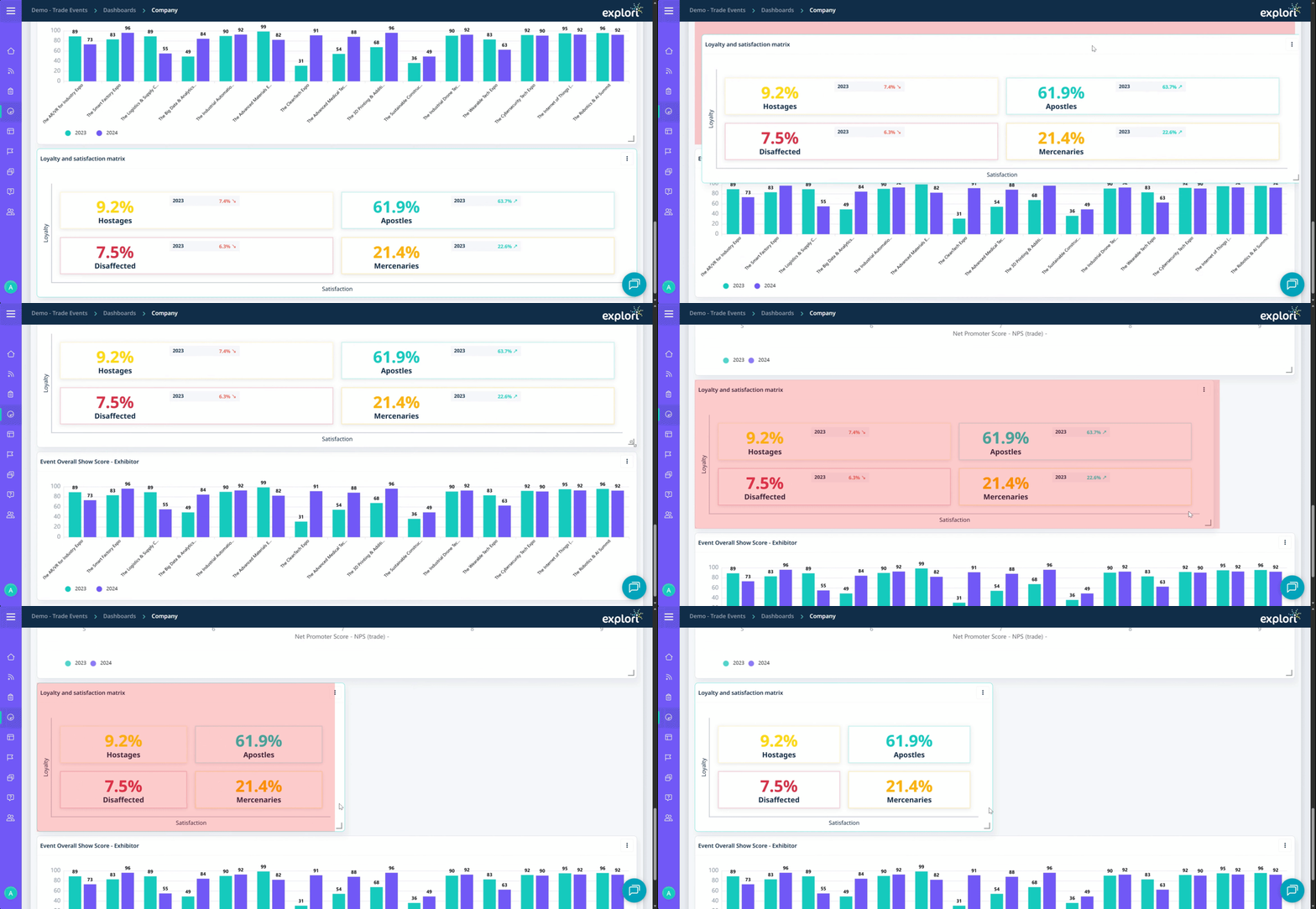
Drag and drop the widget to choose where you would like for it to appear on the dashboard and drag the bottom right corner to resize the widget.
Tip: If you would like to edit your widget, click on the 3-dot menu and select ‘Edit widget’. To remove a widget, select ‘Remove widget’ on the 3-dot menu.
-
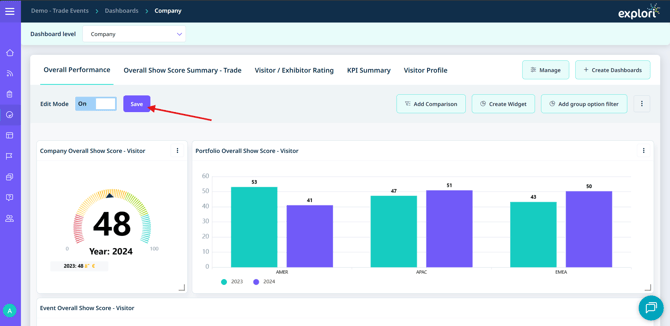
Once you are happy with your dashboard, save your changes at the top of the dashboard.
For more information on how to navigate dashboards, please see Explori Dashboards