![explori_logo (1).png]](https://kb.explori.com/hs-fs/hubfs/Explori%20logos/explori_logo%20(1).png?height=40&name=explori_logo%20(1).png)
Customising your surveys is a great way to reinforce your brand throughout the survey experience. Styling your survey can build the credibility of the survey and strengthen brand recognition, leading to an improvement in response rates.
By default, surveys in Explori have the theme in the image below - this may work for lots of surveys (and possibly yours!), but you do have the option to be a lot more flexible with the design of your survey that respondents see.
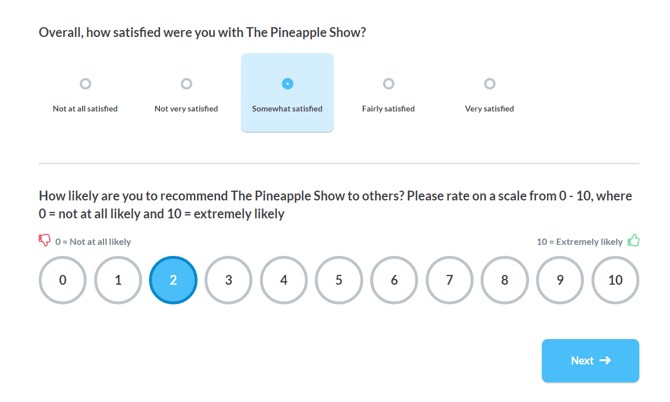
Note: You are not able to adjust the style of surveys that have closed. If you need to view any styling used in a closed survey, re-open the survey via the settings tab.
How to style your surveys
There are a few different ways to style your survey:
Tip: When customising your survey, there are a few things to keep in mind. If you upload a background image, avoid anything too busy so the survey remains visually clear and easy to read. Remember that some respondents may also have some visual impairments, so ensure there is sufficient contrast between text and background, and choose colours that are easy to distinguish.
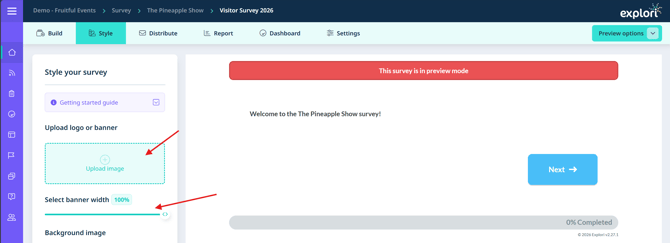
1. Upload a logo or banner with your event branding. There are a few things to bear in mind when uploading banners:
- The maximum width of survey banners in Explori is 1140px. Anything uploaded wider than 1140px will be resized, whilst banners that are narrower than 1140px will be left as is. Once a banner has been uploaded, you can adjust the width via the slider to fine tune how it looks on your page.
- The recommended max height for banners is 200px, but banners can be larger than this if needed.
- Max file size is 2MB
- Image file types supported are .png, .jpg, .jpeg, .svg
2. Upload a background image for your survey that reflects the company image.
-
Accepted file types are gif, jpg or png. Please note; these must be suitable for web format i.e. RGB
-
The max file size must not exceed 2MB
-
Aspect ratio ideally 16:9 but at least 4:3
-
The max background width is 5120 pixels and 2880 pixels in height
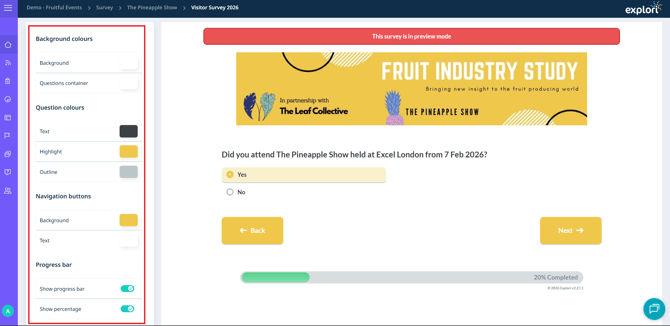
3. Customise the different colours on the page
-
Use the different colour options on the side to customise how the survey looks.
-
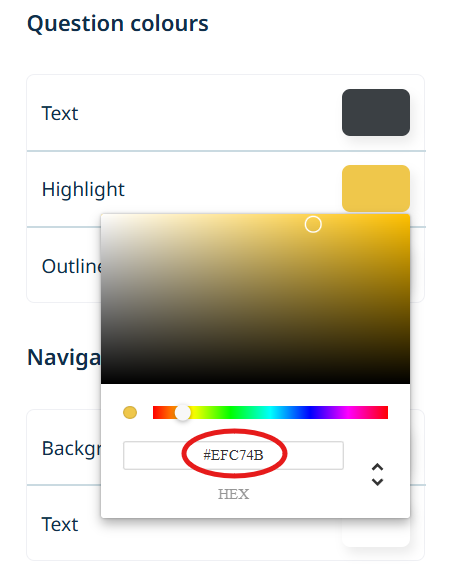
Choose the colour from the spectrum or enter the HEX code at the bottom of the selector. You can also use the arrows to switch to RGB and HSL.
4. Choose whether you want to show or hide the progress bar / percentage and use Custom CSS
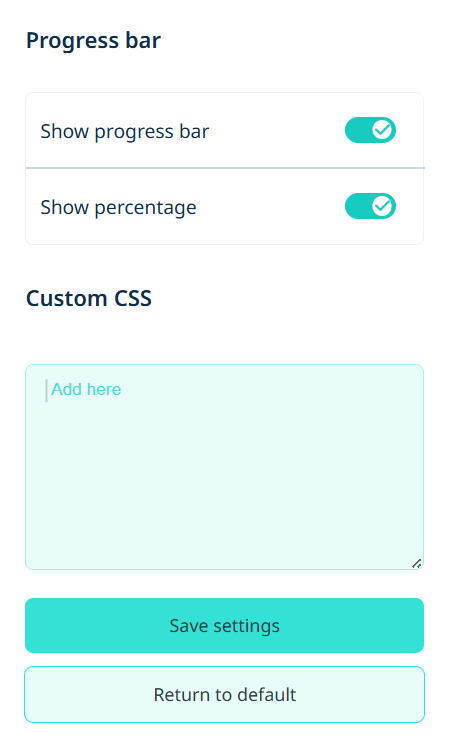
- You can toggle the options to show or hide the progress bar and percentage. The progress bar is a great tool to show respondents how much time they have left in the survey. This added transparency can reduce drop-off rates by managing expectations, encouraging them to complete the survey due to being able to see how much progress they have made and how much time they have left
- At the bottom of the survey styler, we also have a custom CSS box which you can use to customise your survey further if you know how to use CSS
Note: Remember to save your settings at the bottom of the page after making any changes!
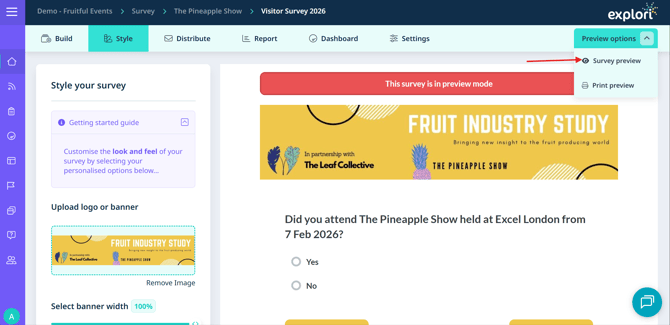
Once you have saved your changes, you can use the survey preview to ensure everything looks as it should.