![explori_logo (1).png]](https://kb.explori.com/hs-fs/hubfs/Explori%20logos/explori_logo%20(1).png?height=40&name=explori_logo%20(1).png)
AI open-text analysis
Open-text responses contain some of the richest insight in your survey data, but reading through hundreds of individual comments is time-consuming and inconsistent. AI open-text analysis removes that barrier.
When you trigger analysis on an eligible open-text question, Explori's AI automatically:
- Generates dynamic themes drawn from the actual content of your responses, specific to that question and event, not a generic category list
- Assigns a sentiment (positive, negative, or neutral) to each response
- Surfaces a sentiment breakdown across all responses, so you can see at a glance how respondents feel about each topic
The result is a clear, structured view of what your audience is saying and how they feel about it in seconds.
Data privacy: All open-text responses are passed through Explori's PII anonymisation pipeline before being sent for analysis and we attempt to remove personally identifiable information from open-text comments before processing
Availability
Note: The AI open-text is NOT available to surveys with an Explori Lite license
Explori's AI-powered survey summaries are available to:
-
All survey types (Benchmarking, General)
-
All user types (Master, Division, Portfolio, Product, Report and Director)
- Report and Director users are unable to manually trigger a refresh
- Minimum responses: A question must have at least 20 responses before analysis can be generated.
AI open-text is enabled by default in all surveys. However AI can be disabled in the Settings page of your survey
Note: AI must be enabled for your organisation to appear, please contact support@explori.com if you are unsure if your account has this enabled
How to use AI open-text analysis
Generating themes and sentiment
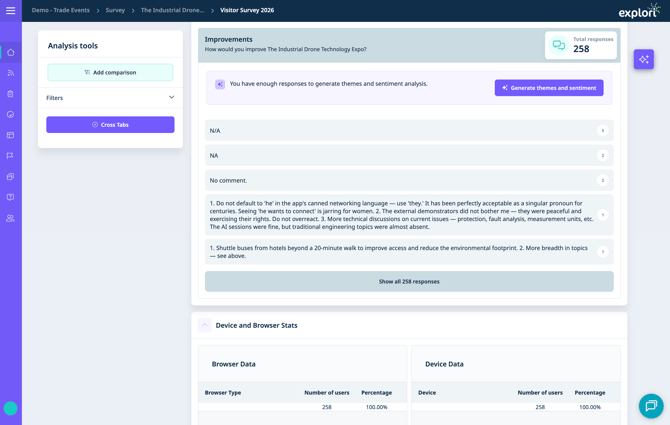
- Open your survey in Reports.
- Navigate to an eligible open-text question.
- If the question has 20 or more responses, select Generate themes and sentiment to trigger analysis.
Note: If a question has fewer than 20 responses, analysis is not available.
Reading your results
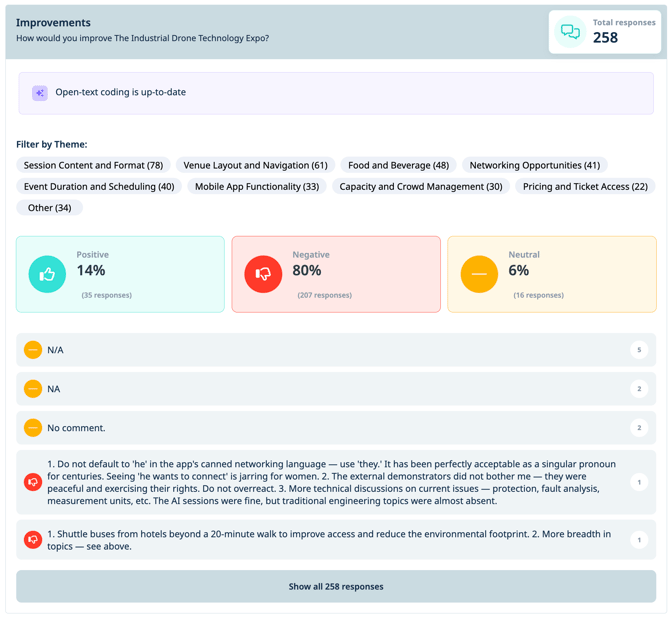
Once analysis is complete, the AI results panel appears above your list of individual comments. It includes:
- Theme filter bar: a row of dynamically generated themes, each showing the number of responses associated with it
- Sentiment breakdown: three cards showing the percentage and count of Positive, Negative, and Neutral responses
- Individual comments: each open-text response displayed below, with its sentiment indicated
Note: A response can be associated with multiple themes dependent on the contents of the open-text survey response
To explore a specific theme:
Select any theme from the filter bar. The comment list below will filter to show only the responses associated with that theme. N.B. This filter applies to the open-text question only, it does not filter the rest of your report.
To return to all responses:
Select the active theme again to deselect it, or clear the filter.
Tip: Applying report-level filters (e.g. by audience segment or date range) will also update the AI themes and sentiment view to reflect only the filtered group of responses.
Regeneration
You can regenerate themes and sentiment after analysis has previously been generated. To be eligible for regeneration:
- At least 10 new responses must have been collected since the last generation
- The question must not have reached its daily rate limit (one generation per question per day)
Select Generate themes and sentiment to trigger a refresh when both conditions are met.
When your survey closes:
Any open-text question that has previously had analysis generated will be automatically updated when the survey closes, provided new responses have been collected since the last generation. Rate limits do not apply at survey closure. Analysis can also be manually regenerated after closure, subject to the standard daily rate limit.
Note: Survey closure regeneration is processed in a queue. Results may take a short time to appear — please be patient.
Disabling AI open-text analysis
AI open-text analysis can be disabled at three levels: question, survey, or account.
Disable for a specific question
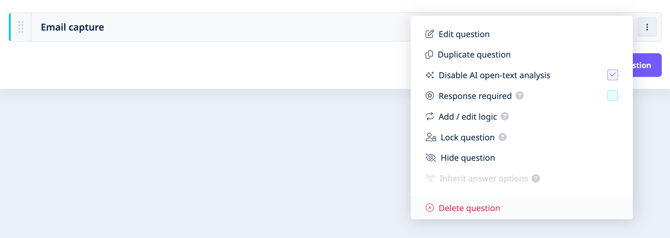
- Open your survey in the survey builder.
- Select the three-dot menu on the question you want to exclude.
- Select Disable AI open-text analysis.
Once disabled, AI analysis will not be generated or displayed for that question. This setting is independent of the survey-level AI toggle.
Disable for a survey
AI open-text analysis shares its survey-level enablement setting with AI Survey Summaries. To disable AI for an entire survey, refer to the AI Survey Summaries KB article.
Disable for your account
Account-level AI enablement is managed by Explori. To opt out of AI features for your entire account, contact your Explori account manager or the Customer Success team.